Quick answer. LED wall HDCP compatibility depends on the source and every active device in the protected video path, including the exact input on the LED processor or upstream scaler. When an unprotected test clip plays and protected content goes black, keep the resolution and frame rate fixed and test the same source on a short, documented compatible route. Add devices back one at a time until the failure returns.
Symptoms that narrow the search
| What you see | What to check next |
|---|---|
| Test pattern works, protected video goes black | Use the same output format for a known unprotected clip and the approved protected source. Check authentication on the selected input. |
| Both sources fail on the same port | Check input selection, cable, signal lock and supported timing before diagnosing content protection. |
| Direct playback works, routed playback fails | Add the switch, extender or other active device back one at a time. Keep the source, content and video format fixed. |
Map the protected input path
Write the installed sequence before touching any settings. A route might run from a media player to a presentation switch, then through an extender pair to the processor input. Include a confidence monitor or recorder if it is attached to an active output on the same routed system. Label the actual connectors, since two inputs on the same device can have different capabilities.
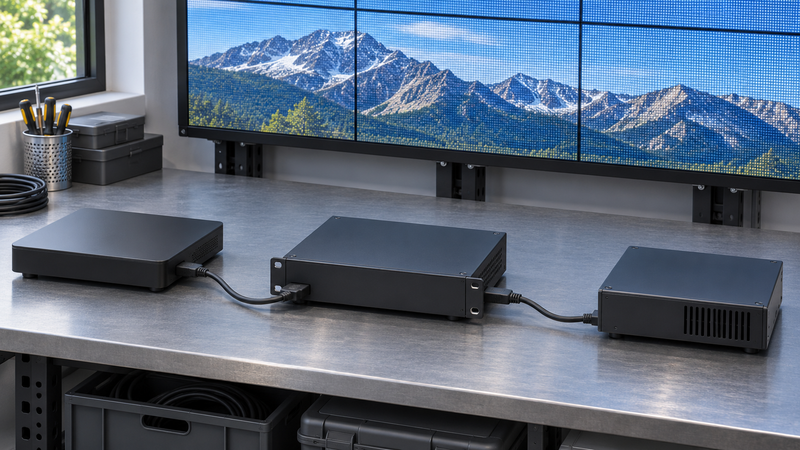
Digital Content Protection LLC explains that HDCP protects a digital connection such as HDMI when the source invokes it. On a direct-view LED system, ask the integrator where protected input is received and processed. Cabinet mapping and data delivery after the processor are separate parts of commissioning. The physical presence of a video connector is only the beginning of the compatibility check.
Two examples show why the port matters. The NovaStar HDR Master 4K input table lists HDCP 2.2 and 1.4 for the HDMI 2.0 input, while its DisplayPort input lists HDCP 1.3. The Brompton Tessera T1 specification lists HDMI via an appropriate adapter and specifies that the input lacks HDCP support. These are examples for the named models and inputs. Verify the equipment in the proposed route against its own documentation.
Test a short route before rebuilding the full chain
- Start with a local, unprotected clip from the same player at a format both devices support. Confirm the selected input is locked and the wall displays the clip.
- Play the approved protected source at the same output format. If it fails, connect the source with a short known-good cable to a reference display that supports the required protection and video format. Check the source output and repeat on the documented processor input.
- Add the intervening devices back one at a time. Retest after each change, including the installed extension and any required monitor branch. Note the first change after which protected playback fails.
Separate HDCP from format and EDID
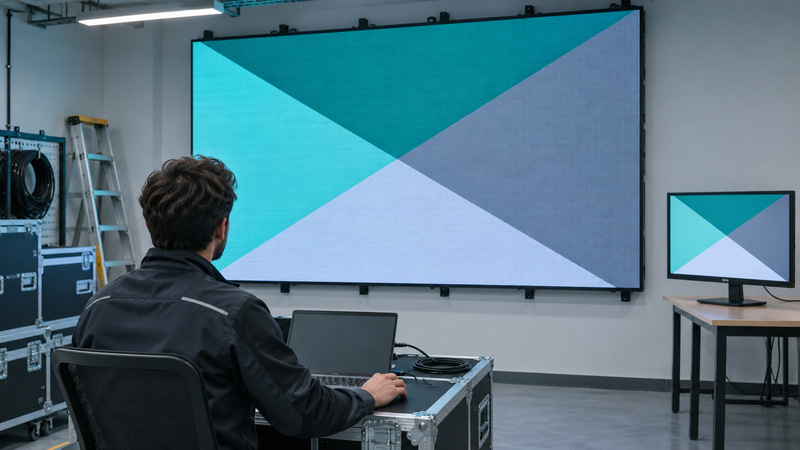
EDID communicates supported video formats to the source. It can affect resolution, refresh rate and other signal choices. HDCP handles authentication for protected transport. A blank screen can have either cause. Keep the test format fixed and compare signal lock with the authentication status, if the equipment exposes both. If video appears only at a lower resolution, record that result and check the format and protection requirements for each mode.
Use the manual for the installed processor and firmware. The NovaStar VX1000 manual, section 5.8.7, documents an Input HDCP control for an encrypted source. It is a model-specific setting. If the needed protection is unsupported on that path, ask the integrator for a documented compliant route or use content provided for the intended playback setup. For basic commissioning checks, see the LED video processor setup checks and the LED signal cable checklist.
Record the path that actually passed
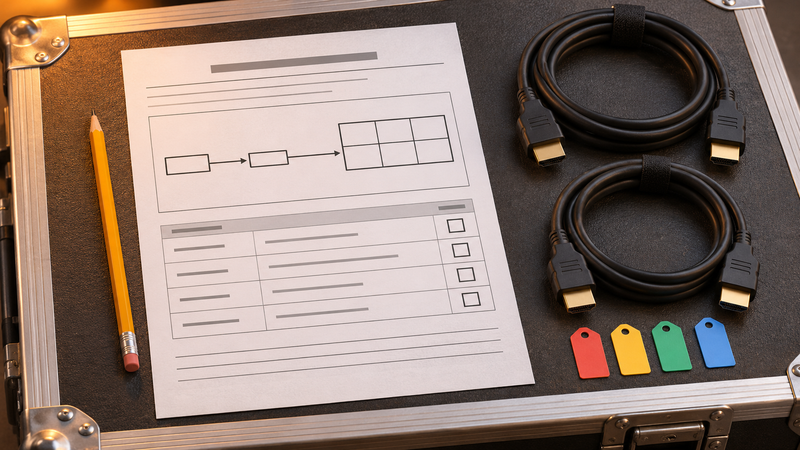
Log the source and application, content type, format, active device models and firmware, exact input and output ports, installed cable or extender path, and whether authentication and playback held during a source switch or restart. Acceptance should refer to the complete tested route. A different laptop or a bench cable establishes a useful baseline for that test only.
For temporary installations where equipment may change between rehearsals and opening, see the trade-show LED wall planning guide.
Questions about LED wall HDCP
Does an HDMI input automatically support HDCP?
No. Verify the exact model and input against the manufacturer documentation. The same device may list different HDCP support by connector.
Does a working test pattern prove an LED wall will play protected content?
No. A test pattern can show that the wall can display an image. To verify protected playback, use the intended source and an approved protected clip on the installed path.
Will changing EDID fix an HDCP failure?
EDID helps the source choose a video format. A compatible format may fix a format problem, but protected playback still needs successful HDCP authentication.
Can I validate an HDCP route with a reference monitor?
A known-compatible reference monitor is useful for confirming source output on a short connection. Retest on the installed processor and complete route before accepting the wall.
Sources
- Digital Content Protection LLC, HDCP FAQ. See the explanation of downstream protection on a digital interface.
- NovaStar HDR Master 4K specifications and Brompton Tessera T1 specifications. See the documented input options for each model.
- NovaStar VX1000 manual. Section 5.8.7 covers the Input HDCP setting.